Showing posts with label google docs. Show all posts

Monday, November 24, 2014

Instructional Technology & Digital Learning Update For November 1st -7th 2014 Andover Innovation Lab & Help Desk


Parth Valecha Andover Innovation Lab Student Inducted Into National Honor Society At Andover High School

I had the opportunity to attend the national honor Society induction because one of my former students that I had at the Andover innovation lab had selected me as a teacher who had inspired them. Parth Valecha  had worked on a business project last year during his time at the Andover Innovation Lab which combined bluetooth technology for headphones and sports which required swimming or boating. Parth and I had many in-depth conversations on his business plan and how he could more narrowly target his market.  It was an honor that he had invited me to this important event and selected me as a teacher. Parth is a hardworking student who will surely be successful in any venture he takes on.

Release Of Our Help Desk Promotional Video
With the editing of Dan Brennan and the assitance of some of our help desk students we have been able to produce a video which outlines the work we do at the Andover innovation lab & Help Desk.
Check it out below!


Math Department Head Working On Blog With Bryce Corbitt

This week Bryce Corbitt from the Andover innovation lab also began working on the Math Department website with Math Program Coordinator Katherine Richards. They were able to determine a layout that they would like to use with Google sites and also begin to conceptualize some of the content that will be included on the site.  Bryce is been a great asset to the team this year and I know he will do a great job working with Ms. Richards.  This project will probably take the next couple months to complete and will become one of his projects. Bryce has been a great resource to several teachers with his great attitude and approach to helping.


Homework Document for Google Drive

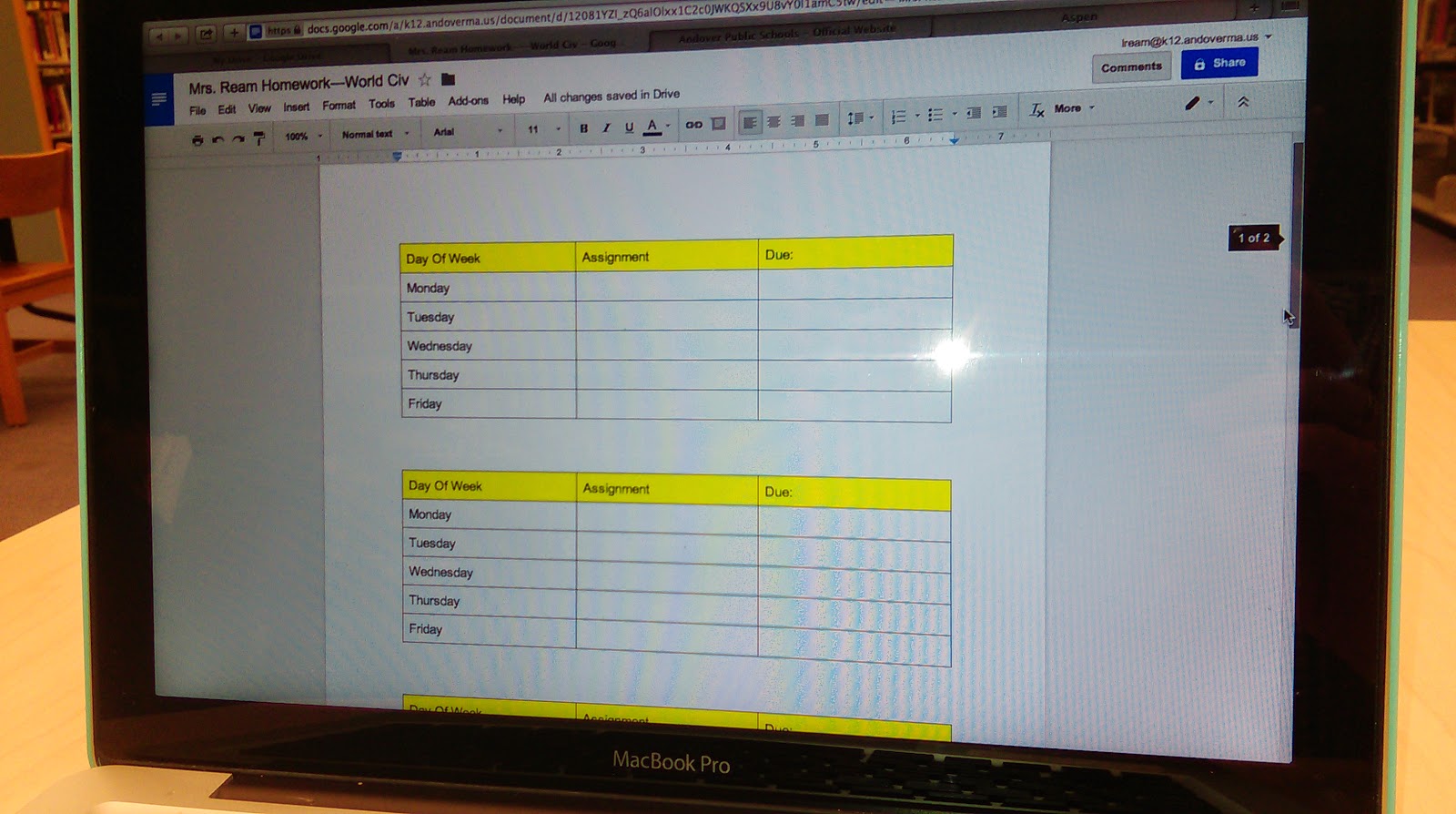
In the process of trying to simplify how to add homework in a streamlined way and Sherrett with parents and students using Aspen I have been showing the use of a Google doc with a shorten link.  On this Google doc I create a table and organize the tables according to the days and weeks of the school day this is an opportunity to keep it consistently organized homework schedule on a live document that teachers do not have to go into Aspen to edit.  This is one of the huge benefits of Google Docs and using shortened personalize the links in order to share materials.  By being able to edit the doc you can consistently update the homework assignments with those who view the consistent link located on the Aspen pages.


Best Practices for Sharing & Editing With Google Drive

I recently started having conversations with both the English and Social Studies Department members about creating a series of best practices for the use of Google Docs and the editing of longer papers.  This process requires an in-depth look at what are the best ways of using the commenting features, sharing features and add-ons that are available with Google Apps for Education.

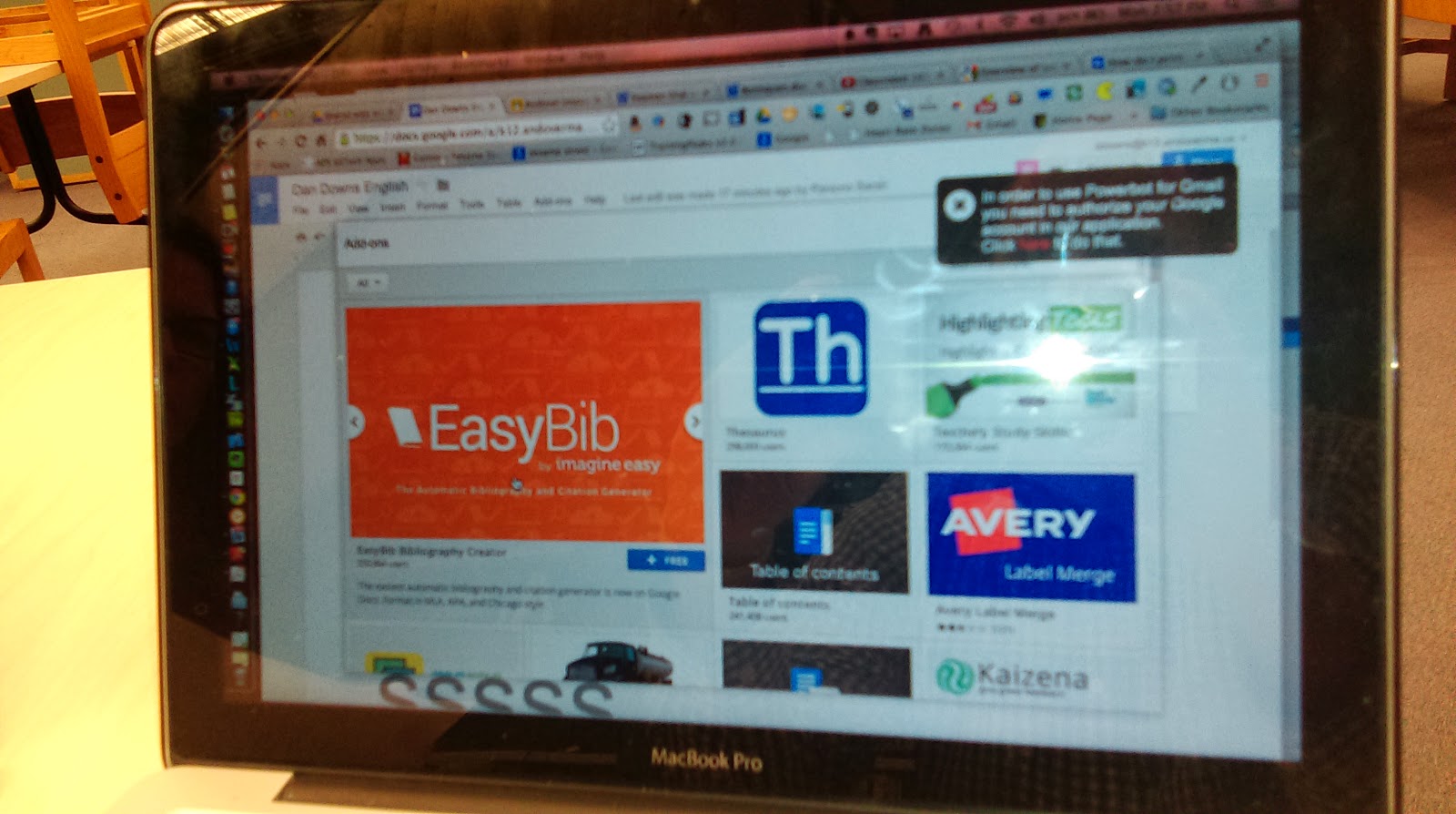
One of the very cool add-ons that’s available is the Easy Bib for Google docs.  This add on enables students to select a piece of text in their paper and then search for a source for citation on the add one. 


The add on locates the source and adds the citation to an area at the bottom of their page and organizes the citations for the student.  This tool ultimately saves a lot of time and helps keep citations organized within a document.


Flubaroo Training-Tech Byte

This past week I conducted a training for the use of Flubaroo at the Andover Public Schools Tech Byte training. Flubaroo is a great add-on to assist with grading quizzes that are you created with the Google Apps for Education Forms documents.  I have created some tutorial videos that I will link to which shows you how to get started with using Flubaroo and how it can improve the way in which you streamline your quizzes that you provided classes. View Part 1 Of My Video Series On Flubaroo.


Pixlr Tool as Web Based Photoshop Alternative
This past week I was able to recommend the Pixlr tool to our web design teacher Mike Messina.  He was looking for a web-based alternative to Photoshop that allowed him to create graphics of different resolution and size and also enabled the ability to add different types of text and layer styles.  This tool is a great web-based tool that allows you to download any of the images that you create as well as upload images into use within the interface.  Definitely check this tool out if you're on a computer that you're not used to working on our really just need a great web-based option and don’t have Photoshop.

Wednesday, January 15, 2014

Instructional Technology & Digital Learning Andover High School Week of January 13-17


During a week in which most teachers are preparing for the end of semester exams many teachers are still working at integrating a variety of tools into the classroom. I had a chance at the last faculty meeting to present some of the components of using Google Docs with files and some of the benefits of collaboration with these tools. Being able to share these tools has opened up a variety of conversations with teacher’s which has extended from just creating Gmail accounts and exploring the collaboration features to developing Google Forms for Assessment in the classroom.


Teacher Highlights:

Teachers in Foreign Language are integrating variety of podcast tools in the foreign language department to help students learn language. Students can participate in lessons driven with native speakers and deep embedded vocabulary.

For the purpose of improving her connection to her students with web based content a teacher is developing a blog using the Blogger format from Google. She has developed a variety of lessons and media to support her existing curriculum. She will be rolling out the website in the new semester. I have had the benefit of working with her to develop the technology which supports her teaching methodology.

Teachers in the Social Studies department are in the process of reviewing web based tools in which to store and share links of curriculum content to share and collaborate with. Teachers were introduced to tools such a Wikispaces (http://www.wikispaces.com/), Portaportal (http://www.portaportal.com/), Urlist (http://urli.st/) and https://delicious.com . These tools can add layers of productivity and collaboration between teachers. For the document outlining these tools click here.


Teachers are beginning to integrate Apple TV into their classroom environments either by projecting their desktops to their class or using the built in applications. Apple TV is an additional piece of hardware which enables “sharing“of Apple devices (IPad, MacBook’s, and Phone’s) to the projector. This technology is particularly beneficial to classrooms in which has access to the IPad or MacBook carts so that students can project their device as well. To learn more about this technology check out this page from Apple.


Co-Teaching Experiences
I had the opportunity to go back into Karen Stevens-Mazmans' class and teach a web design lesson using HTML (Hyper Text Markup Language) and CSS (Cascading Style Sheets) for a marketing webpage assignment she is giving to students. Students are creating promotional websites based on a product. Click here to see her lesson write up. Going into her classroom is a great opportunity to share my skills and deepen the skills learned in the Marketing curriculum. It’s great to see the student’s interest grows as they learn how to code and change the appearance of websites.


Andover Innovation Lab/Help Desk
Students are in the final phases of their independent technology driven projects at the Innovation Lab. We currently have a student creating a mobile application (Eli Gukovsky), researching Minecraft in Education (Viabhav Patel) and learning the programming language Lua (John Makiej). These students will be presenting their final projects during the finals week in an online platform. For more information visit:


Teachers are well into the swing of adapting to all the new technology provided to enhance their teaching and learning. Wireless projection and understanding the intricacies of their new MacBook’s  is beneficial to student engagement but we also want to continue a deeper level of integration of a variety of web tools such as Google tools, Workspaces and a variety of Ipad applications which enhances student understanding of core concepts. In the Science Department a recent influx of new applications for their Ipad carts has enabled them to demonstrate Physics, Engineering and core Physical Science content online.


These updates are just some of the continual evolvement that is going on with technology driven initiatives at the high school across curriculums.

Monday, January 6, 2014

An Overview Of Google Drive With Sample Projects & Directions For Sharing Preferences


The following document provides an overview of the use of Google Drive for the creation of Documents,Spreadsheets,Forms and Presentations. I have embedded the document for easy viewing from my Google Drive. The direct link for this document is here.

This document includes links to link shorteners and also information on how to use and integrate the scripts for Flubaroo and Doctopus. These scripts enable the grading of Goggle documents and also how to create a classroom learning management by organizing the delivery of documents to students. At the bottom of the document is a link to a written tutorial which walks you through creating your Google Document and setting the sharing preferences.


Sunday, December 22, 2013

Helping Teachers Place Their Materials Online: Phase 1-Instructional Strategies & Introduction To Tools


Most teachers when thinking about how to organize their existing content into a web based format play with a variety of tools and resources such Wiki's, Edmodo or other District Based Learning Management Systems. When stuck in between these resources and still looking to have a web based presence for the classroom that offers the look of a teacher website a great option is a blog which can present presentations, links, documents and even a variety of assessments. Many districts have their own policies for teacher websites and access so it is important to check with your district about their policies before beginning and committing to any projects.

This post will include some of the central considerations to consider from an instructional design perspective and also some of the central considerations when choosing to integrate the Google Blogger platform and the associated Google docs and tools. That said, a variety go blog platforms exist and some are extremely interactive (Wordpress, Weebly, Tumblr, Typepad).  I have chosen on this post to focus on Google Blogger due to my success with integrating the tools in the classroom and also the ease in which I can explain its immediate benefits.

Planning-Instructional Design Considerations


Before creating your blogger account and Gmail for the creation of a blogger blog it is important to collect all of the content you would like to have on each section of your blog. I often encourage teachers to organize their blogs as though it will be their website for their classroom in which each course they teach will have its own page and be the focus of that area of the blog. A site map should be developed which helps organize the thinking of the content. This site map can be done formally on paper or can be outlined and integrated immediately. In the example photos below the breakdown of an AP European History course is shown. 

This teacher(photo) has identified specific presentations (PowerPoint’s) and documents (Word) which she will link of this course homepage. I have worked with this teacher to turn these documents into Google Documents for the ease of backing them up on the Google Drive Cloud and linking and sharing opportunities with students. Teachers can also integrate existing PDF's teachers may have been printing in an online format or even turn documents into PDF's.


The process of aligning your course sequence of materials and preparing them to placed on a web based platform can be tedious but it can benefit teachers to back up their documents online and improve the fluency in which they deliver materials online. The process of creating links and sequencing material also enables teachers to reconsider the order in which they present materials and can also allow them to better introduce web-based assessments using tools like Google Form, Socrative or linking to Edmodo environments. Teachers can also begin to consider the integration of screencasts of video lectures for homework or students who have missed courses. The graphic on the left was created using http://www.gliffy.com. This site enables you to create sitemaps and organization graphics.


Discuss Teacher Strategies, Goals & Motivation


From an instructional technologists perspective it is important to have deep conversations with teachers about the intentions they have with their content online. Web platforms can quickly turn off teachers transitioning to creating more online resources. They often feel they do not deliver their materials in way their students or are used to.


Provide support as teachers delve into placing materials online. This support is critical to having teachers see the long-term benefits of web based resources and flipped classroom models. Integrating these tools consistently is a process and fluency with technology in the classroom only grows as it is being used regularly and fitting the environment intended. There will be setbacks in the process but assuring teachers that the time invested can save them time as the forward can help motivate and inspire them to create for the web.

Also assure teachers that providing web-based content does not mean they are replacing traditional instructional methods. In the beginning of this process the tools placed online should be tiered toward supporting instruction and can be used from once a week to daily depending on the comfort level with the tools and resources.

Key Tools & Tips To Consider In the Development of Blogger Blogs For Teachers

(I will be updating this page with new posts in the coming weeks with more specifics on each of these topics. I have included some sample links).
  • Organize all content for each course in a folder and review the order of instruction and course assessments and goals.(Consider creating graphic like the one above. I used Gliffy.com)
  • Set Up A Page For Each Course (This provides a separate space for each course and a way of differentiating for each class.)
  • Create A Google Calendar To Share Course Information (The same calendar in your Google email can be embedded into your blog and used to post course updates)
  • Use Of Google Drive for Storage (Using Drive can streamline linking of resources and also create an immediate backup)
  • Use Google Groups For Collaboration (An easy method for communicating with specific groups based on email address)
  • Use Google Hangouts For Offline meetings (live and recorded collaboration online with video, great for college students and adult professional development)
  • Use YouTube for videos of lectures, videos and supplemental course videos and embed them into the areas of the blog pages with HTML (Screen casting is a powerful tool for sharing screen recordings with presentations or web based instruction).


Sunday, November 24, 2013

Integrating Google Docs Into The French Foreign Language Classroom-Andover High School Instructional Technology

Editing the document collaboratively.
I recently had the opportunity to assist a French teacher with introducing Google Docs for creating a survey in his French classroom. Prior to me coming to his classroom and working with his students  we discussed how we could use Google Docs so that students could share surveys that they create in French with each other easily and streamline the process of having availability all of the surveys available on the web organized by class. This teacher was very open to the different possibilities of using Google Docs for integrating these surveys in his classroom. 

Foreign Language Lab
Prior to me coming to his classroom the students typed up the surveys in Word document format. To assist this teacher I came into the classroom to coteach and show the students how to create a Google form and how to edit the different types of questions and explain how they had many options. Students learned how to create a form, change the name of the form as well as choose a template for the appearance. Even though I knew Google Docs to be very popular tool amongst high school students I was very surprised that many had not created a form before. The students did a great job working within the Google interface and the options for forms is very intuitive and allows them to choose the different types of questions(multiple choice,text,paragraph,checkboxes,choose from a list). Form questions also enable for adding help text to each question and also gave an options for whether or not the question was required or not.


One of the most interesting components of this 
Adding the accent codes.
lesson was teaching students how to add the accent to specific letters in the French language using the American keyboard. We used a webpage with the keyboard shortcuts on the board to assist students with what they needed to type in order to get the accent to show. Many students entered their survey questions in a very expedient way and successfully created their forms. I then was able to show them the live link in which they could then share their form with anyone. I had them copy their link and add it to a document in which I shared with them. Students enjoyed editing the document collaboratively and seeing live the addtion of each survey to the shared document. The final document had all of their surveys links and names on it. I shortened this link and made it so the French teacher could then share these surveys with another class in France to comlete so that the American students could review the responses. 


The students in this class were now easily able to share their surveys with each other and were able to practice creating them using a tool which was intuitive and allowed them to create a variety of questions(multiple choice,text,paragraph,checkboxes,drop down,grid,choose from a list,scale). The sharing feature is valuable in that a variety of settings can be set once and editing by different people can be controlled. The person who created the form or anyone else can edit or not based on the settings. The form can be made available to the public or kept private. Google enables specific editing features for each document created. 

The opportunity to use the language lab was a great benefit to this group of students. This lesson could be done in any computer lab or classroom which has internet access. Google Docs provides a great free way to create surveys or web-based forms in which you can collect data about a variety of subjects. It is very user-friendly and with just a few simple steps can be applied to almost any classroom. It can be used to help with assessment by creating test or quizzes or even in a flipped classroom model so that students can answer questions at home and then have a discussion about them when they get to school.